

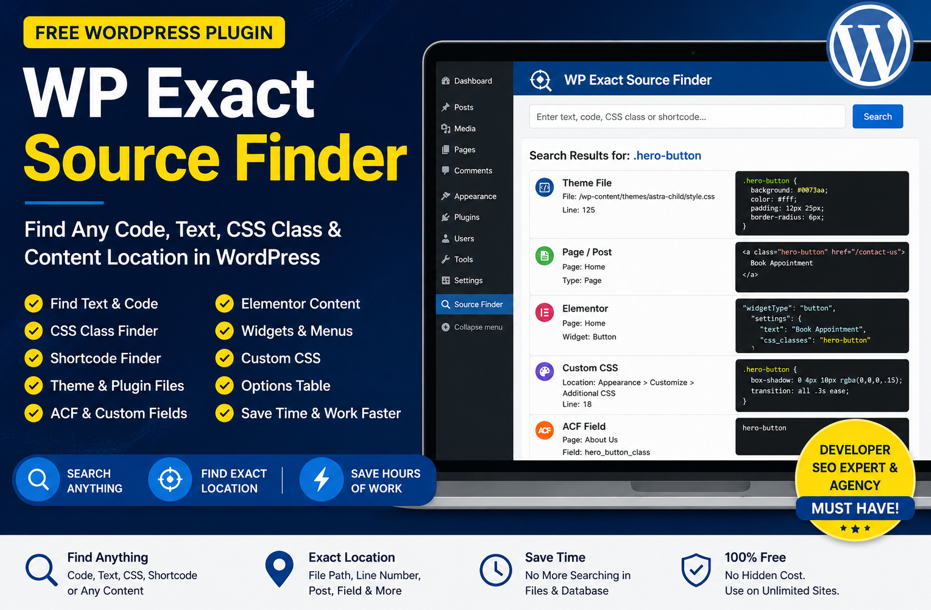
WP Exact Source Finder is a free WordPress plugin that helps developers, SEO experts, freelancers, agencies, and website owners quickly find the exact location of any code, text, CSS class, shortcode, or content inside a WordPress website.
Finding the exact source of code or content in WordPress can feel frustrating. This problem becomes even bigger when a website uses custom themes, plugins, page builders, ACF fields, widgets, shortcodes, and custom CSS. For example, you may see a heading, button, CSS class, shortcode, or text on the front end. However, you may not know where that element comes from.
In many cases, the content may come from a theme file, plugin file, Elementor section, ACF field, WordPress page, widget, menu, or even the options table. As a result, developers often spend valuable time checking multiple places just to make one small change. Therefore, WP Exact Source Finder makes this process faster, easier, and more organised.
With this plugin, users can search their WordPress website and quickly identify the possible source location of the content or code they want to edit. Moreover, it reduces confusion and saves development time. In addition, it makes website maintenance much easier for both beginners and experienced WordPress users.
Because WordPress websites often store content in different places, this plugin gives developers a simple way to search across multiple areas from one dashboard. Finally, instead of guessing where the code or text is located, users can find the right source faster and complete their work with more confidence.
Download WP Exact Source Finder Free
You can download the plugin for free and use it on your WordPress website.
Download Source Finder plugin Free
-No premium version.
-No hidden payment.
-No complicated setup.
Just install, activate, search, and find the source.
Why We Created Exact Source Finder plugin
A single website may contain content from many different places, such as:
- WordPress pages and posts
- Theme PHP files
- Child theme files
- Plugin files
- Elementor data
- ACF custom fields
- Gutenberg blocks
- Custom CSS
- Header and footer code
- Widgets
- Menus
- Shortcodes
- WordPress options
Because of this, developers often waste a lot of time just trying to find where one piece of text or code is located.
For example, a client may say:
“Please change this button text on the homepage.”
But when the developer opens the page editor, the text is not there.
Then they check Elementor.
Still not found.
Then they check theme files.
Still confusing.
Then they check custom fields, widgets, menus, and custom code.
This small change can easily take 30 minutes, 1 hour, or even more.
What Can Exact Source Finder Find?
Exact Source Finder can help you search many types of website elements.
You can search for:
CSS classes
Text content
HTML code
Shortcodes
Button text
Headings
Phone numbers
Tracking codes
Custom snippets
Theme code
Plugin code
Elementor content
ACF field values
WordPress options
Menu text
Widget content
For example, you can search:
.hero-bannerBook Appointment[contact-form-7]main-headerGoogle Tag ManagerFree ConsultationThe plugin will scan your WordPress website and show possible locations where that text, class, or code exists.
Key Features of WP Exact Source Finder
1. Find Code in WordPress Theme Files
Many WordPress websites use custom code inside theme files or child theme files.
Exact Source Finder can scan theme files and show where your searched code is located.
It can help find code inside:
PHP files
CSS files
JavaScript files
HTML files
Theme template files
Child theme files
This is very useful when a website is custom-built or modified by multiple developers.
2. Find Text in WordPress Pages and Posts
The plugin can search inside pages, posts, and custom post types to find the matching text.
It can help you quickly identify which page contains a specific heading, paragraph, button text, or shortcode.
3. Find CSS Class Location
CSS issues are very common in WordPress websites.
With Exact Source Finder, you can search for CSS classes like:
.site-header.custom-button.home-hero-section.footer-ctaThe plugin helps you to find whether the class is coming from a theme file, custom CSS, plugin file, or page builder data.
4. Find ACF and Custom Field Content
Sometimes ACF content is not visible in the normal WordPress editor. This makes it difficult for new developers or SEO teams to understand where the content is coming from.
WP Exact Source Finder can scan post meta and custom fields to help find content stored in ACF-style fields.
This is very helpful for websites built with custom layouts, repeater fields, flexible content, and custom templates.
5. Find Elementor Content
Many websites use Elementor for page building.
Elementor stores page data differently, so normal WordPress search may not always help developers find the exact location.
WP Exact Source Finder can search Elementor-related data and help you identify whether your searched text or class exists inside Elementor content.
This can save a lot of time when editing landing pages, service pages, and homepage sections.
6. Find Shortcodes and Tracking Codes
You can also use this plugin to search for shortcodes or tracking scripts.
For example:
[contact-form-7]gtagGTM-fbqThis is useful for developers and marketers who want to find where forms, analytics scripts, Meta Pixel, Google Tag Manager, or custom tracking codes are added.
Who Should Use WP Exact Source Finder?
This free WordPress plugin is useful for:
WordPress Developers
Developers can quickly find source locations instead of manually checking multiple files and database areas.
SEO Experts
SEO teams can find headings, duplicate text, schema code, meta-related snippets, and landing page content faster.
Website Owners
Website owners who manage their own WordPress site can understand where important text or code is placed.
Freelancers
Freelancers working on old or messy websites can save hours during website changes.
Agencies
Agencies managing multiple WordPress websites can use this plugin to speed up troubleshooting and website maintenance.
Common Problems This Plugin Solves
WP Exact Source Finder is useful when you face problems like:
I can see the text on the website, but I cannot find it in WordPress.I need to find where this CSS class is written.I want to know which file contains this custom code.I need to find a shortcode location.I want to find where the phone number is added.I need to remove old tracking code from the website.I want to find content stored in custom fields.This plugin is built exactly for these situations.
How to Install WP Exact Source Finder
Follow these simple steps:
- Download the plugin ZIP file.
- Go to your WordPress dashboard.
- Open Plugins > Add New.
- Click Upload Plugin.
- Upload the ZIP file.
- Click Install Now.
- Activate the plugin.
- Open WP Exact Source Finder from your WordPress admin menu.
- Enter the text, code, shortcode, or CSS class you want to find.
- Review the results and open the exact source location.
How to Use the Plugin
After activating the plugin, go to the plugin search page.
Enter anything you want to find, such as:
contact-us-buttonor
Emergency Dentistor
.footer-sectionThe plugin will scan different areas of your WordPress website and show matching results.
Depending on where the content is found, it may show details like:
Source type
File path
Line number
Post or page name
Meta field key
Option name
Preview of matched content
Edit link
This makes it easier to understand where the content or code is coming from.
Why This Plugin Is Free
We created WP Exact Source Finder to help developers and SEO teams who struggle with complicated WordPress websites.
Many useful developer plugins are paid, and not everyone can afford advanced tools. Our goal is to provide a helpful free tool that saves time and makes WordPress development easier.
If you are a beginner, freelancer, SEO executive, or developer handling multiple websites, this plugin can make your work faster and simpler.
Important Security Note
Exact Source Finder is designed for admin use only.
Because the plugin scans website files and database content, it should only be used by trusted website administrators or developers.
Do not give plugin access to unknown users or low-level WordPress users.
Download Exact Source Finder
WP Exact Source Finder is free to download and use.
Use it to find any code, text, CSS class, shortcode, custom field, theme file, plugin file, or content location inside your WordPress website.
WordPress websites can become complicated over time.
When multiple plugins, themes, builders, custom fields, and custom code are used together, finding the exact source of any content can become difficult.
Exact Source Finder makes this process easier by helping you search and locate code, text, CSS classes, shortcodes, and content across your WordPress website.
If you are tired of wasting time finding small pieces of code or content, download this free plugin and try it on your WordPress website.
FAQs
What is WP Exact Source Finder?
WP Exact Source Finder is a free WordPress plugin that helps you find the location of code, text, CSS classes, shortcodes, theme files, plugin files, Elementor data, custom fields, and other content inside a WordPress website.
Is WP Exact Source Finder free?
Yes, WP Exact Source Finder is completely free to download and use.
Can this plugin find CSS classes in WordPress?
Yes, you can search for CSS classes and the plugin can help find where those classes appear inside theme files, plugin files, custom CSS, page content, and other website areas.
Can this plugin find content inside ACF fields?
Yes, the plugin can scan post meta and custom field data, which helps find content stored in ACF-style fields.
Can this plugin find Elementor content?
Yes, WP Exact Source Finder can search Elementor-related data and help locate text, classes, and content added through Elementor.
Is this plugin useful for SEO experts?
Yes, SEO experts can use this plugin to find headings, text, shortcodes, schema code, tracking scripts, duplicate content areas, and other website elements faster.
Is this plugin safe to use?
The plugin is designed for administrator use only. Since it scans files and database content, it should be used only by trusted website owners or developers.