

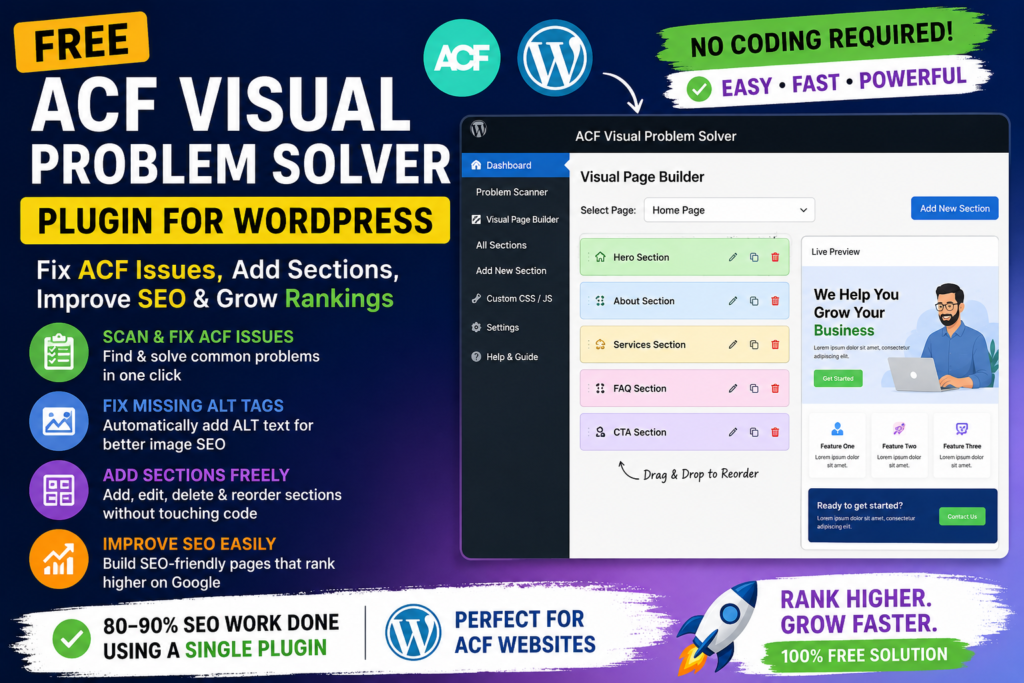
Many WordPress websites are built using the Advanced Custom Fields plugin, also known as ACF. It is a powerful plugin for custom development. However, many website owners, SEO executives, and digital marketers face serious problems when the website is fully dependent on old ACF custom templates.
Sometimes, the old developer has created fixed layouts. As a result, the website owner cannot easily add a new section, update page layouts, add fresh SEO content, fix image ALT tags, or make simple design changes without touching PHP files.
This creates a big problem for people who want to improve SEO but do not know coding.
To solve this issue, we created a free plugin called ACF Visual Problem Solver. This plugin is made for WordPress users, SEO beginners, digital marketers, bloggers, and small business owners who want to improve their website without buying expensive advanced tools.
The goal is simple:
Help people improve their WordPress SEO and page structure for free, without depending on a developer for every small change.
Why We Created This Free ACF Visual Problem Solver plugin
Many small website owners cannot afford expensive SEO tools, premium page builders, or advanced custom development. Still, they want to rank their websites genuinely on Google.
Also, many SEO executives struggle when they work on an old ACF-based WordPress website. They know what changes are required for SEO, but they cannot implement those changes because the website layout is locked inside custom development.
Common problems include:
- No option to add new page sections
- Fixed old layouts
- Missing image ALT tags
- No easy way to add SEO content blocks
- ACF fields not supporting shortcodes
- Hardcoded templates created by an old developer
- Difficulty adding FAQs, CTA sections, trust sections, and service content
- No drag-and-drop control
- Need to edit PHP files for simple changes
- Poor content flexibility for SEO work
This plugin is created to reduce those problems.
What Is ACF Visual Problem Solver?
ACF Visual Problem Solver is a free WordPress plugin that helps users manage old ACF-based websites more easily.
It works like a bridge between your old ACF custom-developed website and your new SEO/content requirements.
With this plugin, you can:
- Scan common ACF programming issues
- Add new sections from the WordPress dashboard
- Edit, delete, and reorder sections
- Use drag-and-drop section ordering
- Add Hero, Text + Image, CTA, FAQ, and Custom HTML sections
- Fix missing ALT tag problems
- Enable shortcode support inside ACF fields
- Display new sections on existing pages
- Use a front-end admin edit bar
- Improve basic on-page SEO without coding
This plugin does not replace ACF. Instead, it makes old ACF websites easier to manage.
Who Can Use This Free ACF Visual Problem Solver Plugin?
This plugin is useful for:
1. Website Owners
If your website was built by an old developer and now you cannot add new sections or modify layouts, this plugin can help you make changes more easily.
2. SEO Executives
If you are working on a client’s website and you cannot add content blocks, FAQs, or CTA sections because of ACF limitations, this plugin can save time.
3. Digital Marketers
If you want to create SEO-friendly landing pages, service sections, offer banners, or trust-building sections, you can use this plugin without touching code.
4. Bloggers
If your WordPress theme is restricted and you want more flexibility, you can add custom sections using this plugin.
5. Small Business Owners
If you cannot afford premium plugins or developers, this free plugin gives you more control over your website content and SEO basics.
Main Features of the Free ACF Visual Problem Solver Plugin
1. ACF Problem Scanner
The plugin includes an ACF Problem Scanner. This scanner checks common issues found in old ACF-based WordPress websites.
It can help identify:
- Whether ACF is active or missing
- Images without ALT text
- Pages with empty default content
- Hardcoded ACF template references
- Shortcode support issues
- Common content flexibility problems
This is very helpful for SEO people because they can quickly understand why a page is difficult to optimise.
2. Visual Page Builder for Old ACF Websites
Many ACF websites do not allow normal editing like Elementor, Gutenberg, or page builders. This plugin adds a simple visual section builder inside the WordPress dashboard.
You can add sections such as:
- Hero Section
- Text + Image Section
- CTA Section
- FAQ Section
- Custom HTML Section
You can also edit:
- Heading
- Subtitle
- Description
- Image URL
- Button text
- Button link
- Background colour
- Text colour
- Button colour
- Custom HTML content
This helps you create SEO-friendly content sections without editing PHP files.
3. Add, Delete, Modify and Reorder Sections
The plugin allows you to control your page sections from the dashboard.
You can:
- Add a new section
- Delete an old section
- Modify text and images
- Change button links
- Change colours
- Reorder sections using drag and drop
This is useful when a client asks for a new page layout or fresh content concept.
Instead of contacting a developer every time, you can make many changes yourself.
4. Front-End Admin Edit Bar
When you are logged in as an admin, the plugin shows a small front-end edit bar.
This helps you quickly open the builder for the page you are viewing.
You can:
- Open the Visual Builder
- Add or edit sections
- Scan issues
- Manage page-level improvements
This makes the workflow faster for SEO teams and website managers.
5. Missing ALT Tag Auto Fix
Image ALT text is important for image SEO and accessibility. However, many old ACF websites display images without proper ALT attributes because the developer did not add ALT code in the template.
This plugin helps by adding fallback ALT text where possible.
It can use:
- Image title
- Page title
- Website name
- Section title
This is helpful for SEO because image ALT text helps search engines understand image context.
However, we always recommend manually writing proper ALT text for important images wherever possible.
6. Shortcode Support Inside ACF Fields
Many old ACF fields do not process shortcodes by default. This creates problems when you want to add custom layouts, forms, buttons, or special content inside ACF text fields.
This plugin enables shortcode support inside common ACF fields such as:
- Text field
- Textarea field
- WYSIWYG field
This means you can use plugin shortcodes inside ACF content areas more easily.
7. Fallback Shortcode for Hardcoded Templates
Some old ACF websites do not show normal WordPress page content. In such cases, the theme may not output the_content().
If your new sections are not visible, you can use this fallback shortcode:
[rmb_acf_page_sections]
Add this shortcode once inside any visible ACF WYSIWYG or textarea field.
After that, the plugin sections can appear on the page.
How This Plugin Helps With SEO
This plugin is not only a design tool. It is built to support practical SEO implementation.
Here is how it helps.
1. Helps Add More SEO Content
Many websites fail to rank because service pages have thin content. But on old ACF websites, adding extra content is difficult.
With this plugin, you can add:
- Service explanation sections
- Benefits sections
- Process sections
- FAQ sections
- Location-based content
- Trust-building sections
- Offer sections
- Internal link blocks
- CTA sections
This helps improve page depth and user experience.
2. Helps Improve On-Page SEO Structure
A good SEO page needs proper content structure.
Using this plugin, you can create better page layouts with:
- Main heading sections
- Supporting subheadings
- Service details
- FAQs
- Images
- Call-to-action buttons
- Internal linking sections
This helps users understand the page better and also helps search engines understand the topic.
3. Helps Fix Missing Image ALT Tags
Many SEO audits show missing ALT tags as an issue.
This plugin helps reduce that issue by adding fallback ALT attributes where possible.
For better SEO, you should still write natural and descriptive ALT text. For example:
Bad ALT text:
image123
Good ALT text:
Dentist explaining dental implant treatment to a patient
This type of ALT text is more useful for both users and search engines.
4. Helps Add FAQ Sections
FAQ sections are very useful for SEO because they answer real user questions.
For example, if you are optimising a dental implant page, you can add FAQs like:
- What are dental implants?
- How long does dental implant treatment take?
- Who is suitable for dental implants?
- Is a consultation required before treatment?
- How do I book an appointment?
This helps improve content quality and user experience.
5. Helps Add CTA Sections
SEO is not only about traffic. It is also about conversions.
With this plugin, you can add CTA sections such as:
- Book Appointment
- Get Free Consultation
- Call Now
- Request a Quote
- Download Guide
- Contact Our Team
This helps turn visitors into leads.
6. Helps SEO Teams Work Faster
SEO executives often know what changes are needed, but they cannot implement them due to technical restrictions.
This plugin helps SEO teams add many important sections without waiting for developers.
This saves time and improves workflow.
Can This Plugin Do 80–90% of SEO Work?
This plugin can help with a large part of basic on-page SEO implementation, especially for old ACF websites.
It can help with:
- Adding content sections
- Improving page structure
- Adding FAQs
- Adding CTA sections
- Fixing missing ALT tag issues
- Improving internal content flexibility
- Adding custom HTML blocks
- Supporting shortcodes inside ACF fields
- Making SEO changes without PHP coding
However, SEO is not only about one plugin.
For complete SEO, you should also work on:
- Keyword research
- Technical SEO
- Website speed
- Mobile experience
- Schema markup
- Internal linking
- High-quality content
- Backlinks
- Google Search Console monitoring
- Conversion tracking
- Regular content updates
So, this plugin can help with many practical on-page SEO tasks, but it should be used along with a proper SEO strategy.
Step-by-Step SEO Guide Using This Plugin
Here is a simple SEO workflow you can follow.
Step 1: Install the Plugin
Go to:
WordPress Dashboard → Plugins → Add New → Upload Plugin
Upload the plugin ZIP file and activate it.
After activation, you will see a new menu:
ACF Problem Solver
Step 2: Run the ACF Problem Scanner
Open:
ACF Problem Solver → Problem Scanner
Check the issues found by the plugin.
Look for:
- Missing ALT tags
- Hardcoded ACF template calls
- Empty page content
- ACF shortcode issues
- ACF dependency problems
This gives you a basic idea of what is blocking your SEO work.
Step 3: Select the Page You Want to Improve
Go to:
ACF Problem Solver → Visual Page Builder
Select the page you want to improve.
For example:
- Home page
- Service page
- Location page
- Blog page
- Landing page
Step 4: Add a New SEO Section
Choose the type of section you want to add.
For example:
- Hero Section
- Text + Image
- CTA
- FAQ
- Custom HTML
Add your content naturally. Do not stuff keywords. Write for users first.
Step 5: Add Helpful Content
For each service page, try to add useful information such as:
- What the service is
- Who needs it
- Benefits
- Process
- Why choose your business
- FAQs
- Contact or booking option
This helps users make better decisions.
Step 6: Add Internal Links
Internal links help users and search engines discover more pages.
You can add links to:
- Related services
- Blog articles
- Contact page
- About page
- Location pages
- Main service category pages
Example:
Learn more about our emergency dental services.
Make sure the link text is natural and useful.
Step 7: Add Image With Proper ALT Text
When adding an image, use a meaningful image name and ALT text.
Example image file name:
dental-implant-consultation.jpg
Example ALT text:
Dental implant consultation with a patient at a modern dental clinic
This improves image SEO and accessibility.
Step 8: Add FAQ Section
Add 4–6 helpful FAQs to important pages.
Good FAQ topics include:
- Cost-related questions
- Process-related questions
- Booking-related questions
- Service suitability questions
- Time-related questions
- Aftercare questions
Keep answers short and useful.
Step 9: Add CTA Section
Every SEO page should guide users toward the next action.
You can add CTA buttons like:
- Book Appointment
- Call Now
- Request Free Quote
- Contact Us
- Get Started
This helps improve conversions from organic traffic.
Step 10: Check the Page on Mobile
After adding sections, check the page on mobile.
Make sure:
- Text is readable
- Buttons are easy to click
- Images are not too large
- Sections look clean
- No content is overlapping
- Page loads properly
Mobile experience is very important for SEO and conversions.
Best SEO Practices to Follow With This Plugin
Here are some simple SEO rules you should follow.
1. Write for People First
Do not create content only for search engines. Write content that genuinely helps users.
Answer their real questions. Explain your service clearly. Avoid fake promises and keyword stuffing.
2. Use One Main Topic Per Page
Each page should focus on one clear topic.
For example:
Good page topic:
Dental Implants in Melbourne
Poor page topic:
Dental implants, veneers, Invisalign, emergency dentist, teeth whitening, root canal
Keep one main focus per page.
3. Use Clear Headings
Use headings to organise content.
Example structure:
H1: Dental Implants in Melbourne
H2: What Are Dental Implants?
H2: Who Can Consider Dental Implants?
H2: Dental Implant Treatment Process
H2: Why Choose Our Clinic?
H2: Frequently Asked Questions
This makes the page easier to read.
4. Keep Paragraphs Short
Long paragraphs are difficult to read.
Try to keep paragraphs short and clear. This improves readability and user experience.
5. Use Natural Keywords
Use keywords naturally in:
- Page title
- H1 heading
- First paragraph
- H2 headings
- Image ALT text
- Meta title
- Meta description
- Internal links
Do not repeat the same keyword too many times.
6. Add Helpful FAQs
FAQs help users and improve content quality.
Do not add random FAQs only for SEO. Add questions that users actually ask.
7. Add Trust Signals
Trust signals help users feel confident.
You can add:
- Reviews
- Experience
- Certifications
- Case studies
- Process explanation
- Before/after guidance where allowed
- Team information
- Location details
8. Improve Internal Linking
Internal links help spread SEO value across your website.
Add links between related pages.
For example:
- Blog to service page
- Service page to contact page
- Location page to service page
- Home page to main service pages
9. Avoid Duplicate Content
Do not copy the same content across many pages.
If you create location pages or service pages, make each page unique and useful.
10. Update Content Regularly
SEO is not a one-time task.
Review important pages regularly and update:
- FAQs
- Service details
- Offers
- Images
- Internal links
- Outdated information
Fresh and accurate content helps users.
Plugin Download
You can download the free plugin here:
Add your plugin download link here
You can also add screenshots here:
Add plugin dashboard screenshot
Add problem scanner screenshot
Add visual builder screenshot
Add front-end edit bar screenshot
Add settings screenshot
Important Note Before Using the Plugin
This plugin is made to help with common ACF website editing and SEO implementation issues.
However, if your theme is fully hardcoded and does not output normal WordPress content, you may need to add this shortcode once in a visible ACF field:
[rmb_acf_page_sections]
After that, the plugin can display your custom sections.
Also, this plugin does not automatically replace professional SEO strategy. It is a practical tool to help you implement many SEO improvements faster.
Final Thoughts
Old ACF-based WordPress websites can be very difficult to manage, especially for SEO teams and small business owners. Many people know what needs to be improved, but they cannot make changes because everything is locked inside custom code.
The ACF Visual Problem Solver Plugin is created to help those users.
It gives you more control over your website. It helps you add sections, fix basic SEO issues, improve content structure, and make useful changes without touching PHP code.
If you are struggling with an old ACF website and want a free solution to improve your WordPress SEO workflow, this plugin can be a helpful starting point.
Download it, test it, and use it to make your website more SEO-friendly.
FAQ
Is this plugin free?
Yes, this plugin is created to help WordPress users, SEO beginners, and small website owners for free.
Does this plugin replace ACF?
No. It does not replace ACF. It works as a helper or bridge plugin for old ACF-based websites.
Can I add new sections without coding?
Yes. You can add Hero, Text + Image, CTA, FAQ, and Custom HTML sections from the WordPress dashboard.
Can I delete or reorder sections?
Yes. You can delete sections and reorder them using drag and drop.
Does this plugin fix missing ALT tags?
Yes. It adds fallback ALT text where possible. However, manually written ALT text is still recommended for important images.
Can this plugin improve SEO?
Yes. It helps with many on-page SEO tasks such as adding content sections, FAQs, CTA blocks, ALT text support, and better page structure.
Does this plugin guarantee ranking?
No plugin can guarantee ranking. SEO depends on content quality, technical health, competition, backlinks, user experience, and many other factors.
What should I do if sections are not showing?
Add this shortcode inside any visible ACF WYSIWYG or textarea field:
[rmb_acf_page_sections]
Is this plugin useful for SEO executives?
Yes. SEO executives can use it to add content sections, FAQs, CTAs, and SEO improvements without waiting for developers.
Can beginners use this plugin?
Yes. The plugin is made for users who do not understand coding but want to improve their WordPress website.